

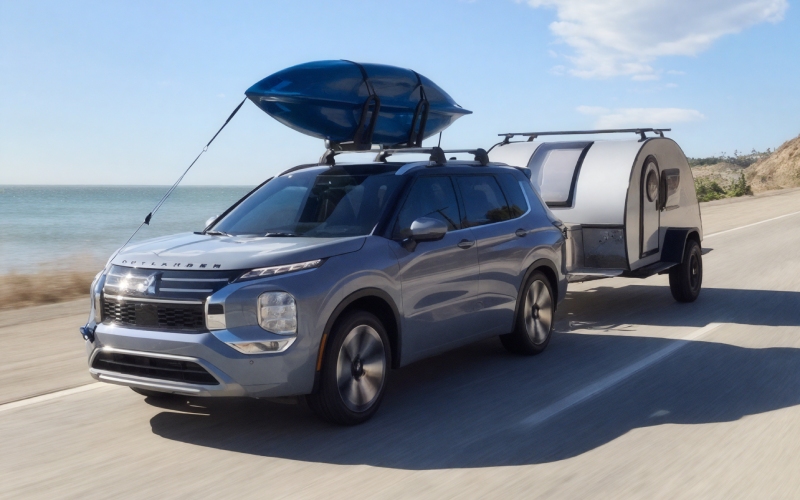
Reading Mitsubishi - How do I connect my phone with Bluetooth® in a 2026 Mitsubishi Outlander near Wyomissing, PA?
Getting your smartphone connected quickly is essential for daily life around Wyomissing, whether you are hopping onto Route 422 toward Reading for the morning commute, cruising Penn Avenue for dinner in West Reading, or heading up to Blue Marsh Lake for the weekend. In the 2026 Mitsubishi Outlander, pairing your phone with Bluetooth® is straightforward, and once it is set up, your calls, podcasts, and playlists are right where you expect them—on the 12.3" Smartphone-link Display Audio with Navigation. At Reading Mitsubishi, we help drivers pair their devices in minutes, and the guide below walks you through the process and the practical tips we share in our showroom.
Why Bluetooth in the 2026 Outlander fits Wyomissing driving
The 2026 Outlander is designed to keep you connected without distraction. Bluetooth® handles hands-free calling and wireless audio streaming, while Wireless Apple CarPlay® and Android Auto™ give you app-level integration for maps, messages, and music. That means fewer cords and less fumbling when traffic builds near the Berkshire Boulevard and Route 222 interchange. With Steering Wheel Voice Recognition Control and clear phone audio routed through Dynamic Sound Yamaha® speakers, you can stay focused on the road and still stay in touch.
It helps to know the difference between standard Bluetooth® pairing and using Apple CarPlay® or Android Auto™. Bluetooth® is perfect for quick calls and streaming from any compatible phone. Apple CarPlay® and Android Auto™ add deeper control of apps and navigation on the Outlander’s touchscreen—wirelessly—so you can follow directions through Waze or Apple Maps without ever touching your phone.
Step-by-step: First-time Bluetooth® pairing in your 2026 Outlander
Set aside a minute or two in a parked, safe spot—like your driveway in Wyomissing or a space at The Knitting Mills—and follow these steps. You only need to do this once per phone; the Outlander remembers your device and reconnects automatically.
- Prepare your phone: Turn on Bluetooth® in your phone’s settings and make it discoverable.
- Start the Outlander: Power on the vehicle so the 12.3" Smartphone-link Display Audio with Navigation is active.
- Open the Bluetooth® menu: On the Outlander’s touchscreen, go to Settings, then select Bluetooth or Phone to begin pairing.
- Choose Add Device: Select Add New (or Pair Device) so the system starts searching for your phone.
- Pick your Outlander: On your phone’s Bluetooth® screen, tap the Outlander system name when it appears.
- Confirm the code: A passkey or PIN may show on both screens—confirm they match, then approve on both the phone and the vehicle screen.
- Grant permissions: Allow access to contacts, messages, and media so hands-free features work properly.
- Set as primary: If prompted, set your phone as the priority device so it connects first when you start the vehicle.
- Test the connection: Make a brief hands-free call or play a song to confirm audio is routed through the vehicle.
During or right after pairing, iPhone users may see a prompt to enable Apple CarPlay®. Android users may see an option to enable Android Auto™—make sure you have the latest Android Auto™ app installed. Accept those prompts if you want app integration on the touchscreen. You can always switch between straight Bluetooth® audio and CarPlay/Android Auto™ later.
Connection tips that match Berks County life
Local drives come with quick errands, school pickups, and back-to-back stops along Penn Avenue. These best practices keep your Outlander’s connection seamless through every start and stop.
- Keep software updated: Install the latest iOS or Android updates and, for Android, the latest Android Auto™ app. Updates improve stability.
- Allow permissions: When the Outlander requests access to contacts or messages, tap Allow so voice dialing and message features function.
- Prioritize your device: If multiple family phones are paired, make yours the Priority device so it connects first during solo drives.
- Avoid duplicate names: Give your phone a unique Bluetooth® name—helpful if you have several devices connected in one household.
- Manage Wi-Fi and data: If streaming quality dips in certain spots between Wyomissing and West Reading, toggle Wi-Fi off and rely on cellular data for smoother audio.
- Try a first-time USB link (Android): While wireless setup is supported, connecting once by USB can help initialize permissions more quickly on some Android phones.
- Adjust battery settings: On Android, exclude your Bluetooth® and Android Auto™ apps from battery optimization to prevent surprise disconnects.
For the clearest calls on Route 422, speak at a normal tone—the built-in microphones are tuned for natural speech. Use the steering-wheel controls and voice prompts instead of handling your phone. And when you park near The Highlands or the Berkshire Mall, your Outlander will gracefully pause your audio and resume it when you return.
What you can do once you are connected
After pairing, hands-free calling takes seconds—say “Call” and the contact’s name or tap the Phone tile on the touchscreen. For navigation, Wireless Apple CarPlay® and Android Auto™ display apps like Apple Maps, Google Maps, and Waze on the 12.3" screen, so you can check traffic heading toward Reading or pick the best route to a game at Santander Arena. Stream playlists or podcasts, and use Steering Wheel Voice Recognition Control to search by artist or episode without taking your eyes off the road.
If you appreciate premium sound, the available Dynamic Sound Yamaha® Ultimate system adds 12 speakers, dual amplifiers, and thoughtful features like Speed Compensated Volume that subtly raises volume as road noise increases. It is a great match for streaming—morning news in Wyomissing, classical on Penn Avenue, or a favorite concert playlist as you head toward Blue Marsh Lake.
Households often share vehicles, and the Outlander can remember multiple phones. In the Bluetooth® settings, you can reorder which phone has priority—ideal when both driver and passenger get in at the same time. If you ever change phones, simply remove the old device from both your phone’s Bluetooth® list and the vehicle’s paired-device list, then pair the new one using the steps above.
If you run into hiccups—no audio, dropped connections, or a device that will not appear—start with a simple restart of both the phone and the vehicle, then delete and re-pair. Still stuck? Our team at Reading Mitsubishi pairs devices every day and can get you squared away in a few minutes.
Beyond connectivity, the 2026 Outlander is built for daily confidence around Wyomissing with available S-AWC traction, advanced safety like Blind Spot Warning (BSW) with Lane Change Assist (LCA), and the peace of mind that comes with America’s Best-Backed Vehicles, including a 10-year/100,000-mile Powertrain Limited Warranty and 5 years of roadside assistance. Pair that with easy, seamless tech, and it is a stress-reducer for commutes, school runs, and weekend plans.
If you want a hands-on walkthrough, visit us at Reading Mitsubishi. We will pair your phone, demo Wireless Apple CarPlay® and Android Auto™, and show you how to tailor audio and voice controls to your preferences. Bring your device—we will have you connected and ready for your next Wyomissing drive in minutes.
Frequently Asked Questions:
Do I need a cable to use Apple CarPlay® or Android Auto™ in the 2026 Outlander?
No—Wireless Apple CarPlay® and Android Auto™ are supported, so you can leave the cords at home. For some Android phones, connecting by USB once can help initialize permissions faster, but it is not required going forward.
Why do my calls or music sometimes route back to my phone instead of the vehicle?
Most often, another paired device is connecting first, or the phone’s Bluetooth® is toggled off during a restart. In the Outlander’s Bluetooth® settings, set your phone as the Priority device and confirm Bluetooth® is on before you start the vehicle. If needed, remove and re-pair the device.
How do I delete a paired device from the Outlander?
On the Outlander’s touchscreen, open Settings, select Bluetooth or Phone, choose Paired Devices, select the phone you want to remove, and tap Delete or Forget. Then, remove the Outlander entry from your phone’s Bluetooth® list before re-pairing.
Will Bluetooth® drain my battery or use my data plan?
Bluetooth® uses very little battery. Data usage depends on what you do—streaming music or using navigation relies on your phone’s cellular data, just as it does outside the vehicle.
Does streaming sound better with the Dynamic Sound Yamaha® systems?
Yes. The standard Dynamic Sound Yamaha® Premium (8 speaker) is tuned for clear vocals and balanced detail. The available Dynamic Sound Yamaha® Ultimate (12 speaker) adds dual amplifiers and features like Speed Compensated Volume and Rain Compensated Volume, enhancing clarity during highway drives or sudden downpours.
Ready to see how easy the 2026 Mitsubishi Outlander makes daily life near Wyomissing? Stop by Reading Mitsubishi for a personalized demo of Bluetooth®, Wireless Apple CarPlay®, and Android Auto™ on the 12.3" Smartphone-link Display Audio with Navigation. We will get you connected, customize your settings, and send you out for a confident test drive on local roads you know well.
Request more 2026 Mitsubishi Outlander information
Categories:
Mitsubishi Outlander